
Your Salesforce Org Has Three Security Layers. Most Admins Only Touch One.
Salesforce security goes beyond your password policy. Here's the three-layer framework that changed how I approach client security reviews -- and the 15-minute check that usually surprises everyone.
Your Salesforce Org Has Three Security Layers. Most Admins Only Touch One.
Salesforce security goes beyond your password policy. Here's the three-layer framework that changed how I approach client security reviews -- and the 15-minute check that usually surprises everyone.
A client called me last month.
"We turned on MFA," they said. "We're covered, right?"
I opened Setup and went to Health Check. They scored a 42 out of 100.
Not because they were careless.
They just didn't know there were two other layers of security they weren't using. MFA was only one piece.
I see this constantly. An admin turns on MFA, ticks the box, and moves on to the next fire. Nobody checks what else is available. Then an audit happens -- or worse, somebody leaves the company and still has access -- and suddenly there are gaps everywhere.
Section One
The Framework That Actually Makes Sense
Salesforce published a whitepaper on this -- "Invisibles, Configurables, and Enhanceables."
I read whitepapers for a living. Most are unreadable. This one got it right.
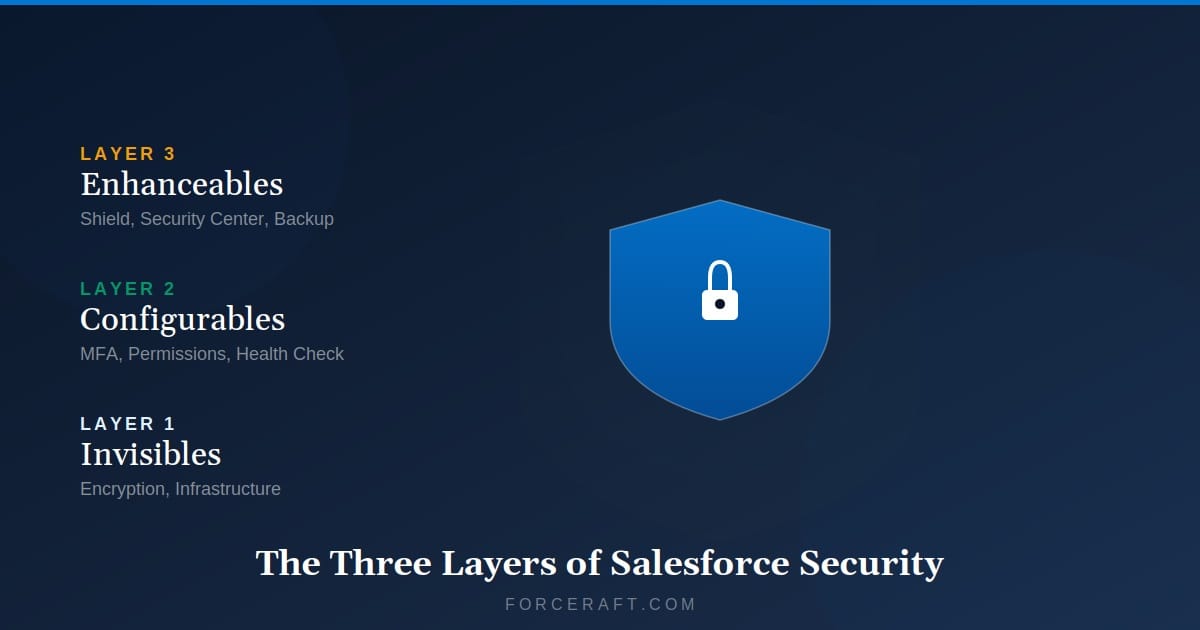
Security isn't one big thing. It's three layers that work together.
The Three Layers
Invisibles -- The platform security Salesforce handles for you.
Configurables -- The security tools included with every license that you need to configure.
Enhanceables -- Paid add-ons for regulated industries or complex orgs.
Most admins only touch Configurables -- and only a few of them. That's where the gaps show up.
Section Two
Invisibles -- The Stuff Running Behind the Scenes
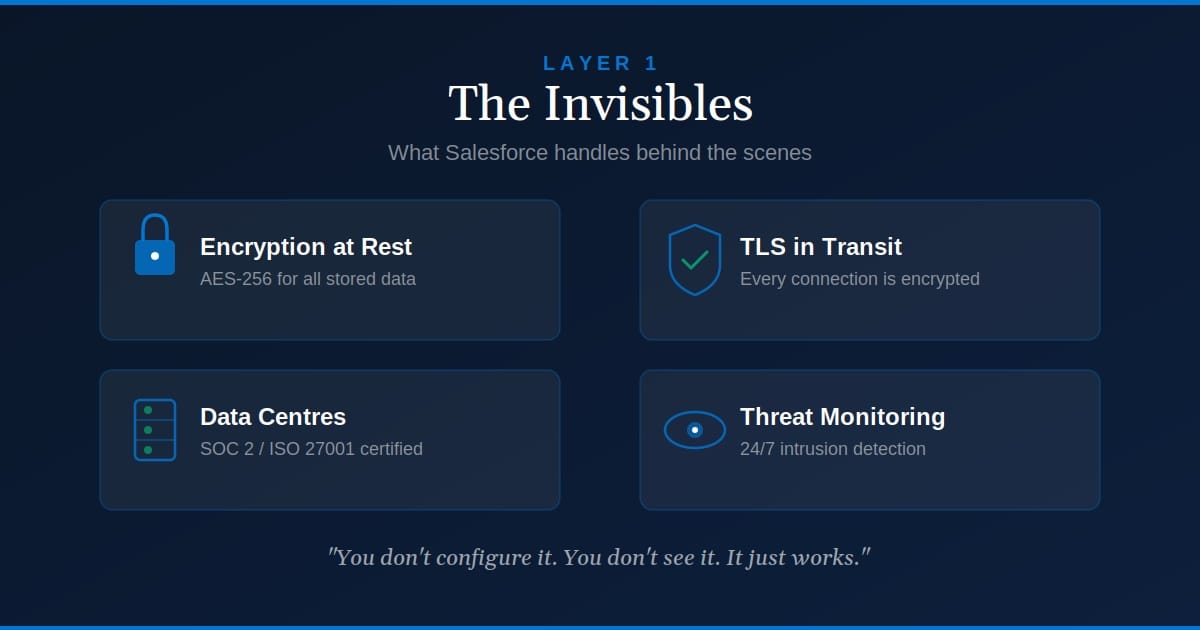
This is what Salesforce does for you. You don't configure it. You don't see it. It just works.
Here's what that includes:
Physical Security
Data centers with 24/7 monitoring, biometric access, redundant power.
Network Security
Firewalls, intrusion detection, DDoS protection.
Encryption in Transit
TLS for all data moving between your browser and Salesforce.
Code Testing
Salesforce runs vulnerability scans and penetration tests on platform code.
This is why your data is safer in Salesforce than in that Excel file your finance team keeps emailing around.
Salesforce holds certifications most small businesses can't afford. SOC 2 Type II. ISO 27001. FedRAMP (for government contracts). PCI DSS (for payment data).
You get those for free. Just by using the platform.
If a client asks how your data is protected, point them to trust.salesforce.com. Everything is documented there. Uptime. Security reports. Compliance certifications.
You don't need to do anything here. Just know it exists.
Section Three
Configurables -- Where Most Admins Should Spend Their Time
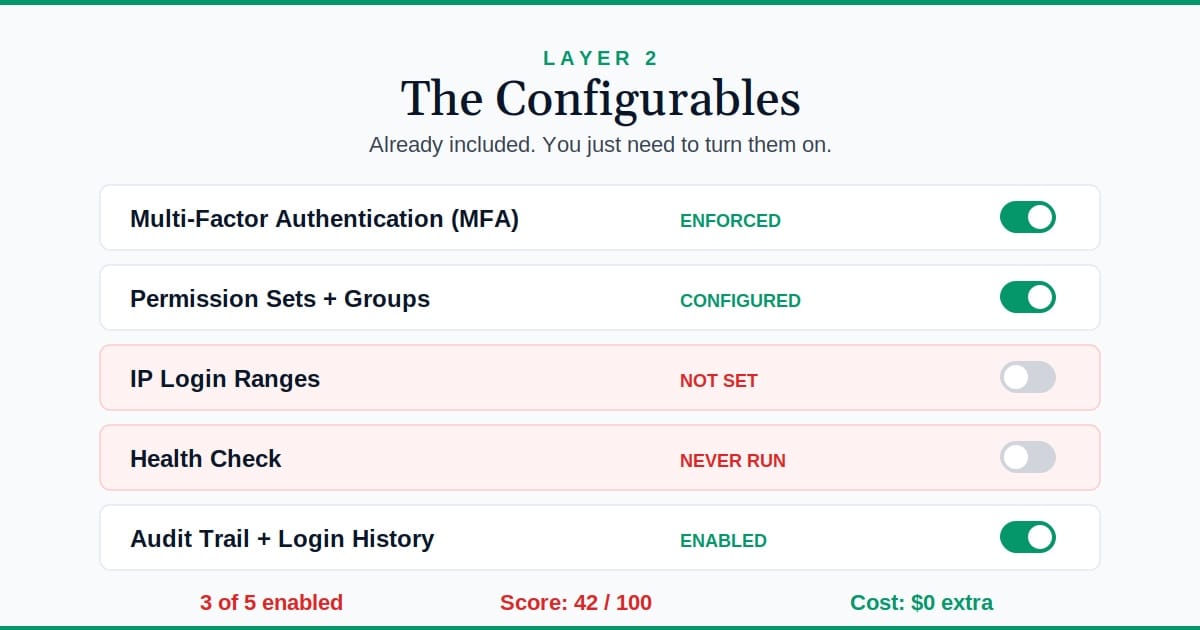
This is your job.
These tools are included with every Salesforce license. No extra cost. But they don't turn themselves on.
Here's what you should have configured:
Multi-Factor Authentication (MFA)
I was reviewing an org last year. A sales rep's laptop got stolen from their car. Password was saved in the browser.
If MFA hadn't been enforced, whoever took that laptop would have had full access to the CRM. Customer data. Deal history. Emails. All of it.
Salesforce made this mandatory in February 2022. If you're still letting users log in with just a password, you're violating the contract.
Go to Setup > Identity > Multi-Factor Authentication and verify it's enforced. Not just enabled -- enforced.
What to check:
- MFA is required for all users (not optional)
- Users have registered at least one verification method (Salesforce Authenticator, security key, or authenticator app)
- Backup verification codes are available in case primary method fails
Common mistake: Turning on MFA but not enforcing it. Some admins enable it and assume users will adopt it. They won't. Make it mandatory.
Profiles, Permission Sets, and Sharing Rules
This is least privilege access. Users should only see what they need to do their job.
I see orgs where every user has "View All" and "Modify All" on half the objects. That's not security. That's laziness.
A marketing coordinator doesn't need to delete Opportunities. A sales rep doesn't need "Modify All" on Cases. Lock it down.
Go to Setup > Permission Sets or Setup > Profiles and review who has what.
Here's the quick audit:
- No users have "View All" or "Modify All" unless absolutely required
- Sensitive objects (like Contracts, Financials) have restricted access
- Field-level security is set on PII fields (SSN, salary, health data)
- Sharing rules are reviewed annually (people change roles, permissions don't always get updated)
Common mistake: Giving users "View All Data" to fix a sharing rule problem. That's like giving someone the keys to the building because the conference room lock is broken.
IP Login Ranges
You can restrict logins to specific IP addresses. If your team only works from the office, lock it down.
I had a client with a compromised password. Someone in another country tried to log in at 3 AM. IP restrictions blocked it automatically.
If your users work remotely, you can still use this at the profile level. Lock down admin accounts to office IPs only. Let sales reps log in from anywhere.
Go to Setup > Session Settings and look for "Lock sessions to the IP address from which they originated."
Three things to verify:
- Session locking is enabled (prevents session hijacking)
- Profile-level IP ranges are set for admin accounts
- Org-wide IP ranges are defined if your team works from fixed locations
Common mistake: Setting IP restrictions too broadly. Don't lock everyone out when your internet goes down. Use profile-level restrictions for admins only.
Health Check
This is the tool most admins don't know exists.
I ran this for a financial services client. They scored a 38. Turned out they had password policies from 2015, no session timeout, and guest user access to Case records.
We fixed it in 20 minutes. Score went to 91.
Go to Setup > Health Check. Salesforce will audit your org against their baseline security standards and give you a score out of 100. It shows you exactly what's missing and how to fix it.
What to check:
- Your baseline score (aim for 80+)
- High-risk settings flagged in red (fix these immediately)
- Medium-risk settings flagged in yellow (fix these within 30 days)
- Set a custom baseline if Salesforce's defaults don't match your security policy
Common mistake: Running Health Check once and never revisiting it. Run it quarterly. Security settings drift over time.
15 Minutes
Health Check Runtime
Catches issues that cost thousands
Auditing and Login History
Turn on field-level tracking for sensitive objects. Check Login History for unusual activity.
I had a client who discovered an ex-employee was still logging in six months after termination. Nobody had deactivated the user.
Login History would have caught that in week one.
Go to Setup > Setup Audit Trail to see who changed what in Setup. Go to Setup > Login History to see login attempts.
What to check:
- Field History Tracking is enabled on sensitive objects (Opportunities, Cases, custom financial objects)
- Setup Audit Trail shows no unexpected permission changes
- Login History shows no failed login attempts from unfamiliar locations
- Deactivated users are actually deactivated (sort Login History by status)
Common mistake: Only checking Login History after something goes wrong. Set a monthly calendar reminder. Review it before incidents happen.
Section Four
Enhanceables -- When the Standard Toolbox Isn't Enough
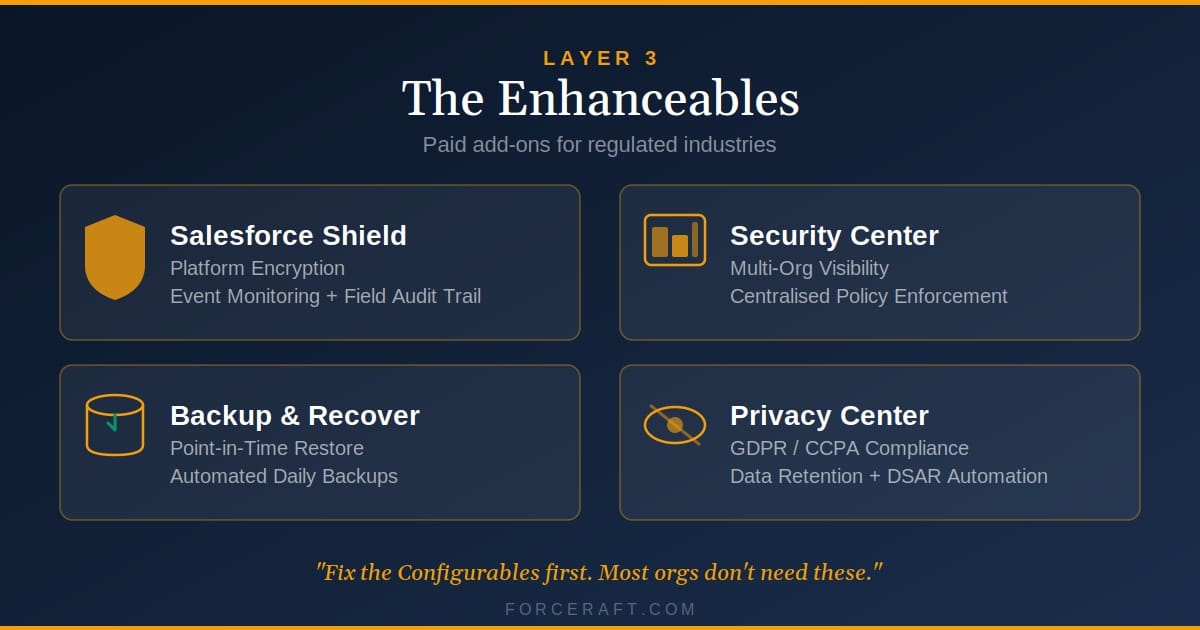
You probably don't need these.
Unless you're in a regulated industry, handling sensitive PII, or managing multiple orgs, the Configurables are enough.
But if you do need more, here's what exists:
Salesforce Shield
Platform Encryption (encrypt data at rest), Event Monitoring (track API calls and data exports), and Data Detect (scan for PII/PHI).
Security Center
Centralized governance across multiple orgs. One dashboard showing the security state of all your sandboxes and production orgs.
Backup and Recover
Native backup and restore. If someone deletes 10,000 Accounts by accident, you can roll back.
Privacy Center
GDPR compliance automation. Handle data subject access requests (DSARs), retention policies, and consent management.
When Do You Need What?
| Regulation | Salesforce Tool |
|---|---|
| GDPR (EU data privacy) | Privacy Center + Shield (Data Detect) |
| HIPAA (healthcare data) | Shield (Platform Encryption + Event Monitoring) |
| SOX (financial controls) | Shield (Event Monitoring) + Security Center |
| CCPA (California privacy) | Privacy Center |
| PCI DSS (payment data) | Shield (Platform Encryption) + Field-level encryption |
When You Actually Need These
Regulated industries -- FINRA, SOX, HIPAA, CCPA compliance.
High-value data -- PHI, PCI, or financial records.
Multiple orgs -- Large enterprises with 10+ orgs that need centralized governance.
I've worked with clients who spent tens of thousands on Shield only to discover they hadn't configured the free tools properly. Fix the Configurables first.
Section Five
The 15-Minute Security Check You Can Do Right Now
Open your org. Run through this checklist. I guarantee you'll find something.
Common Mistakes I See Every Week
1. Treating MFA like a checkbox
Admins enable MFA but don't enforce it. Half the users never register a second factor. When an audit comes, you're not compliant.
2. Granting "View All Data" to fix visibility issues
The problem is usually a sharing rule. Fix the sharing rule. Don't give nuclear-level permissions to solve a scoped problem.
3. Never deactivating users who leave
I found an ex-employee with active access eight months after they left. Build user deactivation into your offboarding process.
4. Running Health Check once and ignoring it
Security settings drift. Someone changes a session timeout. Someone adds a new permission set. Run Health Check quarterly.
5. Assuming compliance = security
Passing an audit doesn't mean you're secure. It means you met the minimum requirements at that moment. Keep improving.
Your Monday Morning Checklist
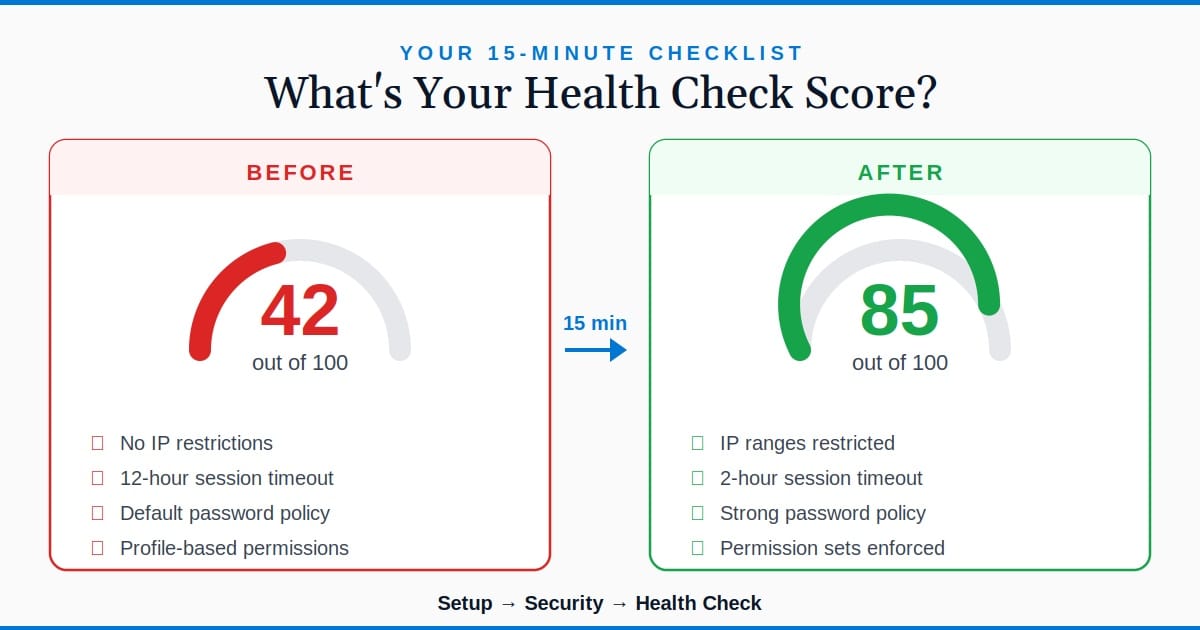
Before
Admin who only uses MFA. Health Check score: 42. Missing IP restrictions, permission audits, and field tracking.
After
Admin using all Configurables. Health Check score: 89. Least privilege enforced. Audit trails enabled. IP restrictions active.
Security isn't a one-time setup.
Run Health Check every quarter. Review permissions when people change roles. Check Login History when something feels off.
Most orgs don't get breached because of sophisticated attacks. They get breached because someone had "View All" when they shouldn't have, or because IP restrictions weren't turned on.
The Configurables handle that. Use them.
Key Takeaways
- Salesforce security has three layers: Invisibles (platform-level), Configurables (your job), and Enhanceables (paid add-ons for regulated industries)
- Most security gaps come from not configuring the free tools -- MFA, permissions, IP restrictions, Health Check, and auditing
- Health Check takes 15 minutes and shows you exactly what's missing. Run it quarterly, not just once.
- Don't buy Shield until you've locked down the Configurables first. Fix the free stuff before spending on premium tools.
- Security isn't compliance. Passing an audit means you met the minimum. Keep improving.
Worth bookmarking:
Salesforce Trust Site -- Uptime, security reports, and compliance certifications
Salesforce Security Guide -- Complete documentation on security features
Want someone to run through your org's security with you?